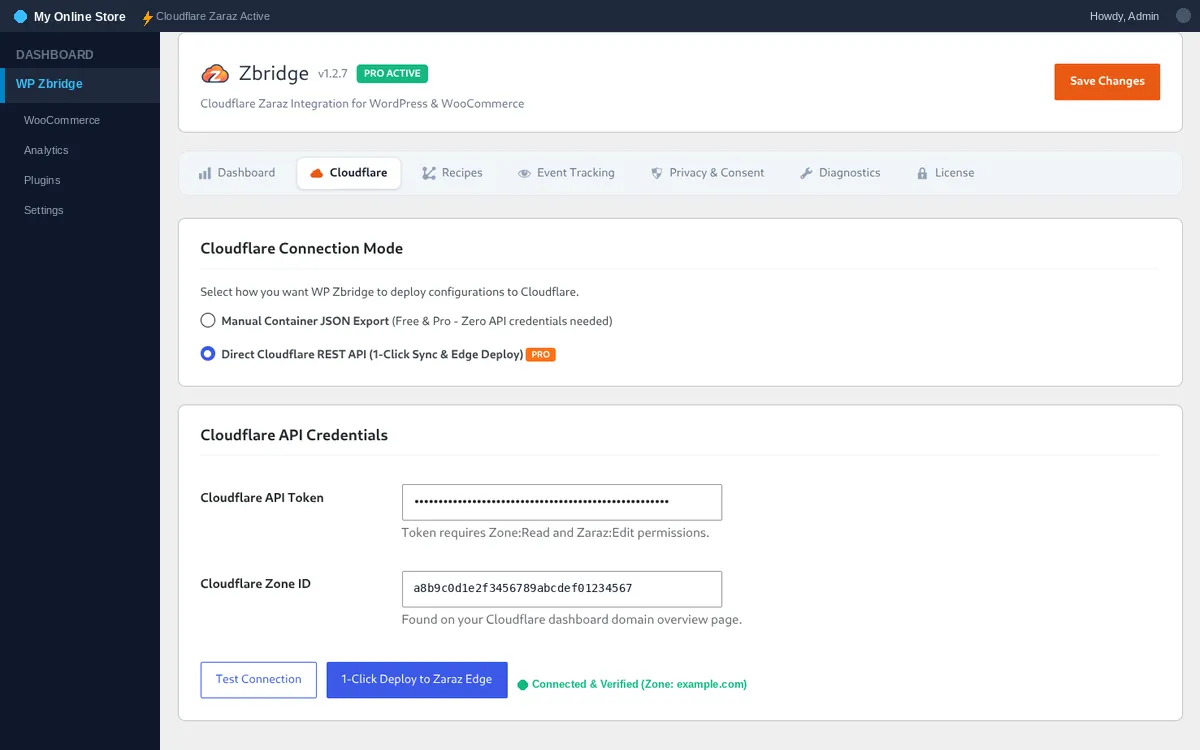
Sync to Zaraz
Deploying pre-configured Zaraz containers, tools, and triggers directly to Cloudflare's edge using the REST API.
Sync to Zaraz PRO
Section titled “Sync to Zaraz ”With Sync to Zaraz, WP Zbridge creates the tools, actions and triggers in Cloudflare Zaraz for you.
What a Sync Sends
Section titled “What a Sync Sends”When you click Sync to Zaraz, WP Zbridge:
- Backup: Downloads your current Zaraz configuration and saves a copy in the WordPress database (backups).
- Builds the container: Generates a Zaraz configuration for the tools you entered IDs for (GA4, Meta, Google Ads, and in Pro TikTok, Snapchat, Pinterest, Bing, LinkedIn), plus the Instagram tool if Instagram embeds are on.
- Merges: Adds or updates WP Zbridge’s tools in your existing configuration, keeping other tools, triggers and settings you created in Cloudflare.
- Uploads: Sends the merged configuration with
PUT /client/v4/zones/{zone_id}/settings/zaraz/config. - Publishes (Preview & Publish zones only): Calls
POST /client/v4/zones/{zone_id}/settings/zaraz/publish. Zones without Preview & Publish apply the upload at once.
Syncing
Section titled “Syncing”- Go to WP Zbridge > Zaraz Recipes.
- Select your tracking tools and enter your measurement credentials.
- Return to Cloudflare & Edge and click Sync to Zaraz.
- A message confirms the sync or explains what went wrong.
To undo a sync, use Roll back last sync on the same tab (Backups & Rolling Back).
Verifying in the Cloudflare Dashboard
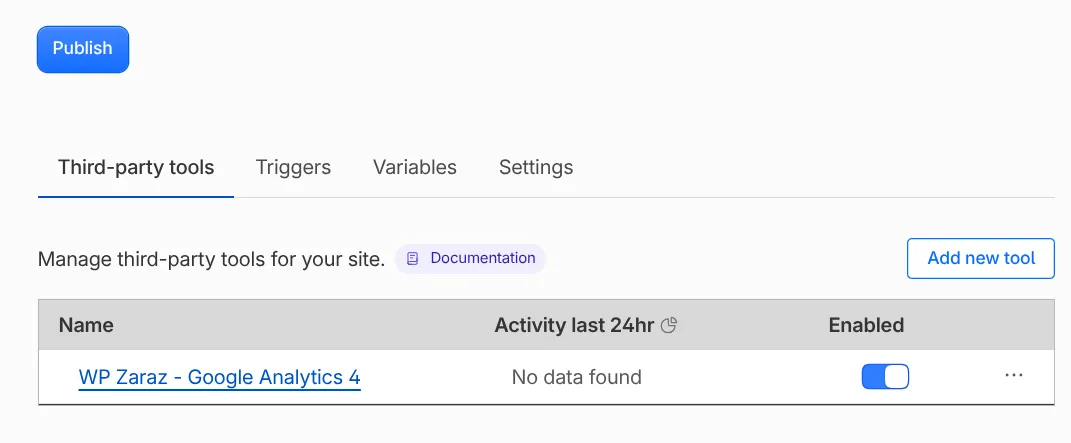
Section titled “Verifying in the Cloudflare Dashboard”Once published, you can open your Cloudflare Dashboard and navigate to Zaraz > Third-party tools. You will see your marketing tools configured and active:
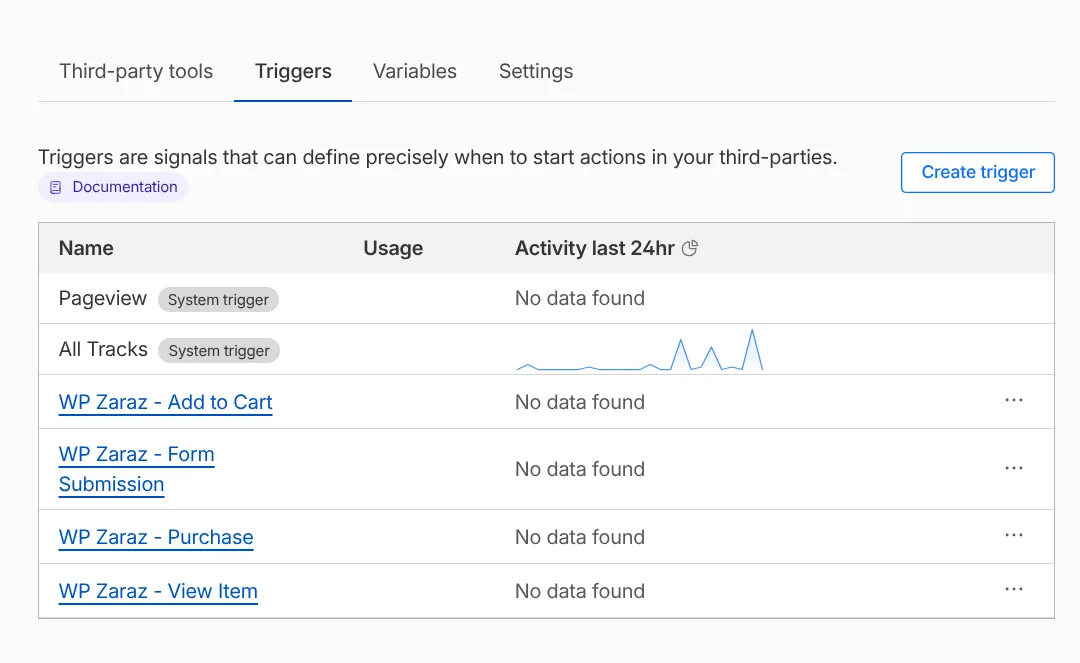
Under the Triggers tab you’ll see the Pageview and All Tracks triggers, plus purchase, lead, contact and sign-up triggers when a tool uses them. E-commerce events don’t need triggers; Zaraz forwards them to tools with e-commerce enabled: