
Server Fallback for Purchases
How WP Zbridge Pro reports WooCommerce purchases the browser missed, plus checkout and variation settings.
Server Fallback for Purchases PRO
Section titled “Server Fallback for Purchases ”A purchase is normally reported by the browser on the thank-you page. If the shopper closes the tab before that page loads, or an ad blocker stops Cloudflare Zaraz, the browser never reports it and your tools never see the sale.
WP Zbridge Pro adds a server fallback for these orders.
How It Works
Section titled “How It Works”Customer completes payment │ ├──► 1. Thank-you page (if the browser loads it) │ Sends Order Completed to Zaraz and tells WordPress it did │ └──► 2. WordPress, 10 minutes after payment If the browser did not report the order, WP Zbridge sends it to Zaraz from the server with the same order ID and event ID.- If the browser reports the purchase: WordPress records that, and the server sends nothing for that order.
- If the browser doesn’t (closed tab, ad blocker): the server sends the purchase to Zaraz’s HTTP Events API with the buyer’s IP address, user agent, page URL, tracking cookies and Zaraz consent cookie captured at checkout.
- Consent still applies: when your tools require consent, Zaraz only forwards the server event if the buyer consented.
- Duplicates: both events carry the same order ID and event ID, so GA4 (transaction ID) and Meta (event ID) can discard a duplicate if one ever occurs.
The delay is set by the wc_server_fallback_delay option (600 seconds by default) and runs through WooCommerce’s Action Scheduler.
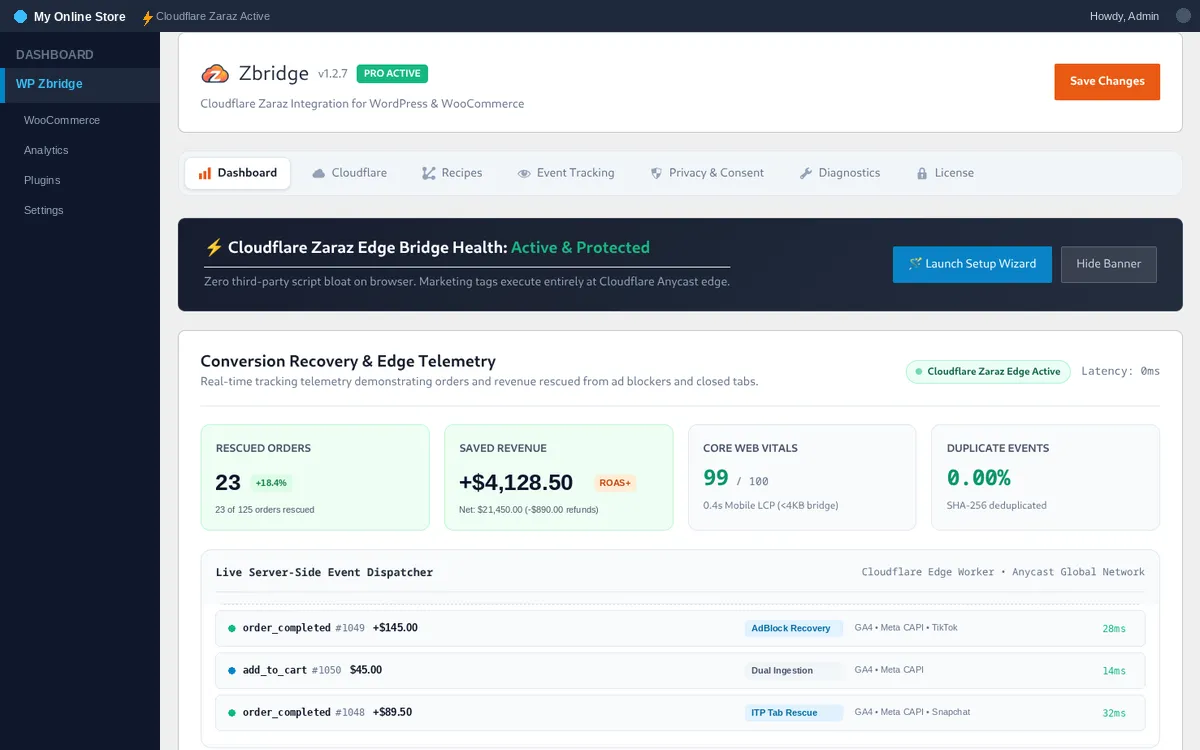
Dashboard
Section titled “Dashboard”On WP Zbridge > Dashboard you can see:
- Sent by Server: orders the browser did not report, which the server sent.
- Revenue Sent by Server: the value of those orders, and net revenue after refunds.
- Orders Tracked and Delivered by Browser: all recorded orders and how many the browser reported.
- Recent Orders: the last 20 orders and how each was delivered.
Smarter Checkout & Product Tracking Features
Section titled “Smarter Checkout & Product Tracking Features”WP Zbridge includes several powerful e-commerce settings designed specifically for WooCommerce store owners:
1. Payment Info Entered Tracking PRO
Section titled “1. Payment Info Entered Tracking ”- Where to find it: In WP Zbridge > E-Commerce, toggle on Track Payment Info Entered.
- What it does: Sends the Zaraz
Payment Info Enterede-commerce event (GA4add_payment_info, MetaAddPaymentInfo) when a shopper selects a payment method on the checkout page. - Why it helps: Shows how many customers reached the payment step without finishing.
2. Use Parent ID for Variations
Section titled “2. Use Parent ID for Variations”- Where to find it: In WP Zbridge > E-Commerce, toggle on Use parent ID for product variations.
- What it does: When a customer views or buys a product with variations (like a shirt in size Medium, Color Blue), WP Zbridge sends the main Parent Product ID instead of the hidden sub-variation ID.
- Why it helps: If your Meta product catalog only lists parent products, variation IDs don’t match catalog items. Sending the parent ID makes them match.
3. Track Product Variant Selection
Section titled “3. Track Product Variant Selection”- Where to find it: In WP Zbridge > E-Commerce, toggle on Send event when choosing variant.
- What it does: Automatically sends a
select_variationevent whenever a customer clicks a size swatch, color swatch, or variation dropdown on a single product page. - Why it helps: Shows which colors and sizes shoppers look at, even when they don’t add the item to the cart.
4. Manual & Offline Order Attribution PRO
Section titled “4. Manual & Offline Order Attribution ”- Where to find it: On any individual WooCommerce Order edit page (WooCommerce > Orders > Order Details).
- What it does: In the Order actions dropdown, select Dispatch WP Zbridge Edge Attribution and click the update button.
- Why it helps: For telephone, B2B or bank transfer orders created by staff, this sends the purchase to Cloudflare Zaraz, which forwards it to your tools. An order note records the result. Without a shopper’s browser visit, ad platforms usually can’t link such an order to an ad click.